
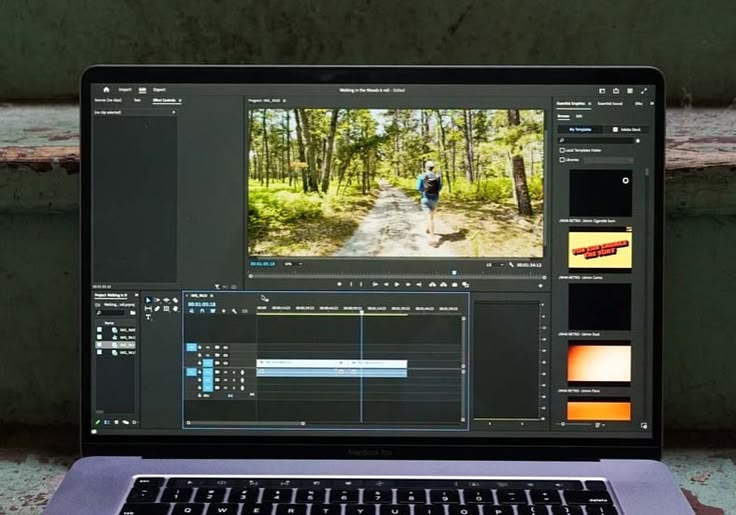
The gap between a video that keeps viewers watching and one that loses them in the first fifteen seconds usually isn’t the camera — it’s the edit. Pacing, cuts, captions, and thumbnails do as much work as the raw footage itself, which is why choosing the right editing software matters more for YouTube success than most creators expect when they’re starting out.
The right choice depends heavily on experience level, budget, and how much you value speed versus creative control. This guide breaks down the leading options across every stage of the YouTube creator journey.
What YouTubers Actually Need From Editing Software
Unlike film editing, YouTube editing has its own priorities. Fast turnaround matters, because consistency beats perfection on a platform that rewards frequent uploads. Built-in captioning matters enormously for accessibility and watch time, since a large share of viewers watch with sound off. Easy export presets for YouTube’s preferred formats save time on every single upload. And increasingly, AI-assisted features — auto-cutting silences, auto-generating captions, suggesting highlight clips — have become genuine time-savers rather than gimmicks.
DaVinci Resolve — Best Free Professional Option
DaVinci Resolve’s free version is genuinely stunning value: professional-grade color correction, a full audio mixing suite, and editing tools that rival paid software costing hundreds of dollars a year. It’s used on actual Hollywood productions, which tells you something about its ceiling. For YouTubers willing to invest time in learning a slightly steeper interface, there’s essentially no better free option available.
The tradeoff is the learning curve — Resolve’s professional roots mean its interface assumes more editing knowledge than beginner-friendly tools. It also demands a reasonably capable computer to run smoothly, especially with higher-resolution footage.
Best for: YouTubers who want professional-grade tools without a subscription and don’t mind a learning curve.
Adobe Premiere Pro — Best for Professional Workflows
Premiere Pro remains the industry standard for a reason: deep integration with the rest of Adobe’s Creative Cloud (After Effects for motion graphics, Photoshop for thumbnails), robust multi-camera editing, and enough professional-grade tools to handle any project a growing channel throws at it. Its AI features — auto-reframe for different aspect ratios, scene-edit detection, and speech-to-text captioning — have narrowed the gap with more automated competitors.
Its subscription cost and system requirements are real considerations, and its interface, while powerful, isn’t the fastest option for creators who just want to cut a video quickly and upload it.
Best for: established creators with a full Adobe workflow who need maximum creative control.
Final Cut Pro — Best for Mac-Based Creators
Final Cut Pro’s one-time purchase price (rather than a subscription) and deep optimization for Apple hardware make it a favorite among Mac-based YouTubers. Its magnetic timeline is genuinely faster for certain editing styles once learned, and performance on Apple Silicon machines is excellent — rendering and exporting noticeably faster than cross-platform alternatives running on the same hardware.
The obvious limitation is platform lock-in: it’s Mac-only, which rules it out immediately for Windows-based creators.
Best for: Mac users who want professional editing without an ongoing subscription.
CapCut — Best for Fast, Trend-Driven Editing
CapCut has become enormously popular among YouTubers making shorter-form content, YouTube Shorts, and trend-driven videos, largely because it makes fast, polished edits genuinely easy. Auto-captions, trending templates, and a mobile-desktop workflow that stays in sync make it possible to go from raw footage to published video in a fraction of the time a traditional NLE requires.
It’s less suited to long-form, deeply produced content — its feature set optimizes for speed and trend-following over the granular control that longer videos sometimes need.
Best for: creators focused on Shorts, trend-driven content, or fast turnaround editing.
Filmora — Best for Beginners Who Want Real Features
Filmora occupies a useful middle ground: significantly easier to learn than Premiere Pro or Resolve, but with enough real editing power — motion tracking, keyframing, a solid effects library — that creators don’t outgrow it within their first few months. Its interface is intuitive enough that new YouTubers can start producing decent-looking videos within a day of installing it.
Best for: beginner and intermediate YouTubers who want an easy learning curve without feeling limited.
Descript — Best for Text-Based Editing
Descript flips the traditional editing model on its head: instead of scrubbing through a timeline, you edit video by editing a transcript — delete a sentence from the text, and the corresponding video clip disappears. This is transformative for talking-head content, podcasts repurposed into video, and any format built around spoken words rather than heavy visual sequencing.
Its automatic silence removal and filler-word removal (cutting out “ums” and “likes”) alone can save hours on a typical talking-head video edit.
Best for: creators making talking-head, interview, or podcast-style video content.
iMovie — Best Truly Free Starting Point
For brand-new creators unsure whether YouTube is even going to stick, iMovie (free on every Mac and iOS device) covers the basics competently: trimming, transitions, basic titles, and simple color adjustments. It’s not a tool anyone should plan to grow with long-term, but as a zero-cost, zero-risk way to make a first few videos, it removes any excuse not to start.
Best for: brand-new creators testing the waters before committing to paid software.
How to Choose Based on Where You Are as a Creator
Brand-new creators uploading their first handful of videos are usually better served by free, low-friction tools — iMovie or CapCut — than by investing time learning Premiere Pro before they’ve even confirmed they enjoy making videos consistently. Once a channel finds real traction and editing time becomes a genuine bottleneck, that’s the point to consider DaVinci Resolve or Filmora for more control without necessarily paying a subscription.
Established channels producing frequent, polished content typically graduate to Premiere Pro or Final Cut Pro, both of which reward the time invested in learning them with faster, more flexible workflows at scale. And creators whose content is fundamentally about talking — interviews, commentary, podcasts — often find Descript’s transcript-based editing cuts editing time more dramatically than any traditional timeline-based tool, regardless of channel size.
Don’t Underestimate Captions and Thumbnails
Whichever editor you choose, prioritize two things that have an outsized effect on YouTube performance: captions and thumbnails. Auto-captioning (built into CapCut, Descript, and Premiere Pro) dramatically improves accessibility and watch time from sound-off viewers. And while thumbnail creation often happens outside the video editor entirely — in Canva or Photoshop — some editors, like Premiere Pro paired with Photoshop, make pulling a frame directly from your footage into a thumbnail design significantly faster.
Hardware Considerations That Matter as Much as the Software
Video editing software is only as fast as the computer running it, and this is a genuine consideration YouTubers often underestimate when choosing a tool. Editing in 4K, working with multiple layers of effects, or handling long-form footage all demand meaningfully more processing power and RAM than basic 1080p cuts. Before assuming a slow editing experience is a software problem, it’s worth confirming your hardware actually meets the recommended specs — a powerful editor like Premiere Pro or Resolve running on an underpowered machine will feel sluggish and frustrating regardless of how good the software itself is.
For creators editing primarily on laptops, thermal throttling during long export sessions is a real and common issue — a laptop that performs well for a quick five-minute edit may slow down noticeably during a longer render as it heats up. This is worth factoring into equipment decisions alongside the software choice itself, since a mismatch between the two is one of the most common (and most fixable) sources of editing frustration for growing channels.
Common Questions About Video Editing Software for YouTube
Do I need to pay for editing software to succeed on YouTube? No — DaVinci Resolve’s free version and iMovie both demonstrate that genuinely capable, professional-looking edits don’t require a subscription. Paid software becomes more valuable as your workflow gets more complex or time-constrained, not as a prerequisite for quality.
How important are captions for YouTube specifically? Very important. A significant share of viewers watch with sound off, particularly on mobile, and YouTube’s own algorithm uses caption data to better understand and surface content. Auto-caption features, now standard in most modern editors, remove nearly all the friction that used to make this an optional extra step.
Should I edit directly on my phone instead of a computer? For Shorts and fast, trend-driven content, mobile editing in something like CapCut is genuinely sufficient and often faster than moving footage to a desktop. For long-form, more heavily produced content, desktop software still offers more control and processing headroom meaningfully.
How long does it typically take to learn a professional editor like Premiere Pro? Most new users can produce a basic, competent edit within their first week, but real fluency — using keyframes, color grading, and more advanced effects comfortably — typically takes a few months of regular use to develop. This is a reasonable investment for creators planning to stick with YouTube long-term.
Is it worth switching editing software as my channel grows? Often, yes. Many successful creators start on a free or beginner-friendly tool and migrate to something more powerful once editing time becomes a genuine bottleneck or their content format demands features the original tool doesn’t offer. This is a normal progression, not a sign the earlier choice was wrong.
Final Thoughts
There’s no universally “best” video editing software for YouTube — there’s a best fit for your budget, your platform, your content format, and how much time you’re willing to invest in learning the tool. Start with a free option to confirm your workflow and content style before committing to a paid subscription, and don’t be afraid to switch tools as your channel’s needs evolve. The editing software matters far less than the consistency of what you publish with it.