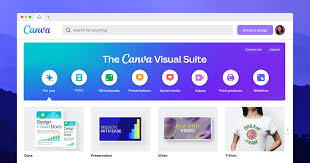
If you have ever designed a social media post, a resume, or a presentation online, chances are you have opened Canva. It has become one of the most popular design tools in the world, used by marketers, students, small business owners, and anyone who needs a professional-looking graphic without hiring a designer. But once you spend more than a few minutes inside Canva, you will notice a recurring prompt nudging you toward Canva Pro. Templates with a little crown icon. Photos you cannot quite use. A “Try Pro for free” button that follows you around the dashboard.
So the question every regular user eventually asks is simple: is Canva Pro actually worth paying for, or is the free version enough? This guide breaks down exactly what each plan offers, what the real-world price difference looks like, and how to decide which one fits your needs.
What Canva Free Actually Includes
Canva’s free plan is one of the most generous free tiers in the entire design software category, and that is not an exaggeration. With a free account, you get access to a huge library of templates, a large stock library of photos and graphics, basic editing tools, and enough storage to get real work done. You can create social media graphics, simple presentations, flyers, resumes, and more without paying a cent.
The free plan also includes basic collaboration features, so you can share a design with a colleague or client for feedback, and simple export options that let you download your work as a PNG, JPG, or PDF. For a hobbyist, a student putting together a class project, or someone who only opens Canva a few times a month, the free plan genuinely covers most needs.
Where the free plan starts to show its limits is in the depth of the content library and the more advanced tools. Many of the best-looking templates are marked with a small crown, meaning they are reserved for Pro subscribers. The same goes for a large portion of the premium photo, video, and audio library. You can still design perfectly good graphics using free assets, but you will notice the nicer, more polished options are frequently locked.
What You Get With Canva Pro
Canva Pro is the paid tier built for people who use Canva regularly, whether that is for a business, a content creation side hustle, or a demanding personal project. As of 2026, Canva Pro runs somewhere in the range of $12 to $15 per month when billed annually, which typically works out to roughly $120 to $150 for the year, or a higher monthly rate if you pay month to month rather than committing annually. Pricing has shifted a few times over the past couple of years, so it is worth double-checking the current number on Canva’s own pricing page before you subscribe.
For that price, you unlock the full content library, meaning every premium template, photo, video clip, and audio track becomes available without restriction. You also get access to Canva’s Background Remover, a genuinely useful one-click tool that cuts a subject out from its background instantly, something that used to require a separate app like Photoshop. Magic Resize is another standout feature. It lets you take a design you have already built, like an Instagram post, and instantly reformat it for a dozen other sizes and platforms, from a Facebook cover photo to a YouTube thumbnail, without rebuilding it from scratch.
Brand Kit is one of the most valuable Pro features for anyone doing business or freelance work. It lets you save your brand colors, fonts, and logo so every design you create stays visually consistent. Pro also increases your cloud storage significantly compared to the free plan, and it unlocks more AI-powered tools inside Canva’s Magic Studio suite, such as AI image generation, AI writing assistance for captions and copy, and tools like Magic Eraser for removing unwanted objects from photos.
Canva Pro vs Canva Teams: A Quick Note
If you are shopping for a whole team rather than yourself, Canva also offers a Teams (sometimes called Business) plan, priced per user with a minimum number of seats. This plan builds on everything in Pro and adds collaboration-focused features like shared brand controls, approval workflows, and centralized asset management. If you are a solo user, Pro is almost certainly the plan you want. If you are managing a marketing team of three or more people who need a shared brand identity and approval process, the Teams plan is worth comparing directly against buying multiple individual Pro seats, since the per-user cost can actually work out lower.
The Real Difference: Time Saved, Not Just Features Unlocked
The feature list matters, but the more useful way to think about Canva Pro is in terms of time saved. If you are creating content regularly, whether that is weekly social posts, monthly newsletters, or client deliverables, the free plan’s limitations start to add friction. You might spend ten minutes searching for a background-removed image you cannot use because it is locked, or you resize the same graphic five times by hand for five different platforms.
Canva Pro removes that friction. Background Remover alone can save you the cost of a separate tool or the time of manually cutting out an image in an external editor. Magic Resize can save you real hours if you regularly repurpose one design across multiple platforms. For a freelancer or small business owner whose time is worth more than a few dollars an hour, that time savings alone often justifies the monthly cost.
Who Should Stick With Canva Free
Not everyone needs to upgrade, and Canva’s free plan is strong enough that plenty of users should simply stay on it. If you only design something occasionally, such as a birthday invitation, a one-off flyer, a school presentation, or a resume you will use for a while, the free plan is genuinely sufficient. You are unlikely to hit its limitations often enough to justify a recurring subscription.
Students and hobbyists fall into this category too. Unless a specific premium template or feature is essential to a particular project, the free asset library is large enough to produce polished, professional-looking results. There is also no reason to upgrade if you have not yet tried Canva at all. Starting on the free plan lets you get comfortable with the interface and figure out exactly which Pro features you would actually use before spending any money. Many people who eventually upgrade do so only after running into the same limitation repeatedly, like needing Background Remover multiple times in one month.
Who Should Upgrade to Canva Pro
The upgrade makes the most sense for people who treat Canva as a working tool rather than an occasional convenience. Content creators publishing regularly across social platforms benefit enormously from the premium template library and Magic Resize, since it turns one design into a dozen platform-ready versions in seconds. Small business owners and solopreneurs who need consistent branding across invoices, social posts, and marketing materials get real value from Brand Kit, which keeps every design on-brand without manual double-checking.
Freelancers who design for clients, such as social media managers or virtual assistants, often find that Pro pays for itself with the first client project, since premium templates and stock assets reduce the amount of custom design work needed. Marketers and teams producing a high volume of content will also feel the difference immediately, particularly with the AI tools in Magic Studio, which can speed up first drafts of copy, images, and video edits.
A simple rule of thumb: if you would use Background Remover, a premium template, or Magic Resize more than two or three times in your first month on Canva, the subscription will likely pay for itself in time saved alone.
How to Try Before You Commit
Canva typically offers a free trial period on the Pro plan, giving you a genuine test drive of every premium feature before you pay anything. This is the smartest way to evaluate the upgrade. Spend that trial window doing your actual work, whether that means designing a week’s worth of social posts, testing Background Remover on real photos, or trying Magic Resize on a design you already use across multiple platforms. If you find yourself missing those tools once the trial ends, that is a clear signal the upgrade is worth it. If you barely touched the premium features, the free plan is probably the better long-term fit.
It is also worth remembering that annual billing on Canva Pro is noticeably cheaper per month than paying month to month, sometimes by a significant margin. If you are confident you will use Canva regularly for the next year, committing annually is the more cost-effective choice. If you are still testing the waters, month-to-month billing gives you the flexibility to cancel without losing much.
Free Options for Students, Teachers, and Nonprofits
Before paying for Pro, it is worth checking whether you qualify for one of Canva’s free upgrade programs. Verified K-12 teachers and students can often access Canva for Education, which includes most Pro-level features at no cost. Verified nonprofit organizations frequently qualify for a similar free upgrade through Canva’s nonprofit program. If you fall into either category, it is worth applying before reaching for your credit card, since the savings can be substantial for organizations or classrooms that would otherwise need multiple paid seats.
The Bottom Line
Canva Free is not a stripped-down trial version designed to frustrate you into paying. It is a genuinely capable design tool that covers the needs of casual and occasional users well. Canva Pro, on the other hand, is built for people who design often enough that the premium content library, Background Remover, Magic Resize, and Brand Kit save real time and produce noticeably more polished results.
The decision ultimately comes down to frequency and purpose. Occasional, casual use points toward staying free. Regular, business-related, or content-creation-focused use points toward upgrading. If you are unsure which camp you fall into, start a free trial, use Canva for your actual work for a week or two, and let your own usage patterns answer the question for you. Pricing details change periodically, so it is always worth a quick check of Canva’s official pricing page to confirm the current cost before you subscribe.