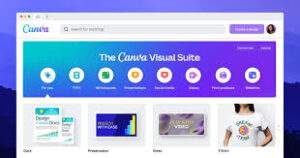

Canva built its reputation as the design tool for people who don’t consider themselves designers, and Magic Studio is its attempt to bring that same accessibility to AI-powered design. Rather than launching a single flashy AI feature, Canva rolled out a whole suite under the Magic Studio umbrella — Magic Design, Magic Write, Magic Media, Magic Resize, Magic Eraser, Magic Expand, and several others — each targeting a specific, common design pain point. This review walks through what each tool actually does, how well it performs in real marketing use, and where it falls short, based on how these tools behave in practical day-to-day content creation.
What Magic Studio Actually Is
Magic Studio isn’t a single AI model or feature — it’s Canva’s branding for a collection of AI tools embedded throughout its existing design platform. This matters because it changes how you should think about evaluating it. You’re not comparing it to a dedicated, single-purpose AI tool like Midjourney or Jasper; you’re evaluating whether AI assistance woven into an already-familiar design tool speeds up the work you were already doing in Canva. For most marketing teams already using Canva for social graphics, presentations, and simple layouts, that framing matters a lot, because the value isn’t “best-in-class AI” — it’s “AI that removes friction from a tool you already use daily.”
Magic Design: Instant Layout Generation
Magic Design is the closest thing Canva has to a “generate my whole design” button. You provide a prompt, upload an image, or start from existing brand assets, and Magic Design produces multiple complete layout options — social posts, presentations, posters — pulling in your brand colors and fonts automatically if you’ve set up a Brand Kit.
In testing, Magic Design performs best when you already have decent source material to work from — a good product photo, a clear headline, established brand colors — rather than starting from nothing. Give it a strong photo and a short prompt, and it typically returns several genuinely usable starting layouts within seconds, saving real time compared to building a layout from a blank canvas. Ask it to generate something from a vague prompt alone, with no image or brand context, and the results tend to look more generic, closer to stock template territory than a distinctive brand design.
The practical takeaway: Magic Design is a strong “first draft in seconds” tool for social and marketing graphics, especially for teams without in-house design support, but it still benefits from a human choosing the best layout and refining it rather than publishing the first output unedited.
Magic Write: Copy Generation Inside the Canvas
Magic Write is Canva’s built-in AI writing assistant, functioning similarly to other AI copywriting tools but living directly inside the design editor, so you can generate or edit text without leaving your layout. You can ask it to write a caption, rewrite existing text in a different tone, shorten a paragraph to fit a specific space, or brainstorm headline variations.
Compared to dedicated copywriting tools like Jasper or Copy.ai, Magic Write is noticeably less sophisticated in terms of brand voice control and longer-form writing quality — it’s a genuinely useful convenience feature rather than a replacement for a dedicated AI writing tool if copy quality is a top priority. Its real strength is contextual convenience: needing a quick caption rewrite while you’re already mid-design, without switching tabs or tools, is a small but real time-saver that adds up across a busy content calendar.
Magic Media: Text-to-Image and Text-to-Video Generation
Magic Media brings generative image and short video creation directly into Canva, letting you type a prompt and generate visual assets without leaving the platform. In practical testing, the image generation quality is solid for illustrative, decorative, or background-style visuals — abstract shapes, stylized icons, thematic imagery to support a layout — but it’s generally a step behind dedicated, specialized image generators like Midjourney when it comes to highly detailed, photorealistic, or artistically ambitious output.
For marketing content where the visual needs to be exceptional and central to the message — a hero image for a major campaign — a dedicated image generator plus import into Canva will usually produce a stronger result. For supporting visuals, backgrounds, or quick illustrative elements where “good enough and fast” beats “best possible,” Magic Media inside Canva is a genuinely efficient shortcut, since the generated asset lands directly in your design without any file transfer step.
Magic Resize: The Underrated Time-Saver
If there’s one Magic Studio feature that consistently delivers outsized practical value for marketing teams, it’s Magic Resize. Marketing content almost always needs to exist in multiple dimensions — a square Instagram post, a vertical Story, a horizontal banner, a Pinterest pin — and manually rebuilding a layout for each format is one of the most tedious parts of design work.
Magic Resize takes an existing design and automatically adapts it to a different aspect ratio, intelligently repositioning text and elements rather than simply stretching or cropping. In testing, results are strong for straightforward designs with a small number of elements, and require more manual adjustment for complex, densely packed layouts, where automatic repositioning can occasionally cause overlap or awkward spacing that needs a quick manual fix. Even accounting for that touch-up time, Magic Resize still saves significant time compared to manually rebuilding each format from scratch, making it one of the most consistently useful tools in the entire suite for teams managing multi-platform content calendars.
Magic Eraser and Magic Expand: Photo Editing Made Accessible
Magic Eraser lets you remove unwanted objects, backgrounds, or blemishes from a photo by simply brushing over the area you want gone, and the AI fills in the space intelligently. Magic Expand extends an image beyond its original borders, generating plausible new content to fill the extra space — useful when a product photo is the wrong aspect ratio for a specific placement and you need to expand the background rather than crop the subject out.
Both tools perform impressively well for straightforward cases — removing a distracting background object, extending a simple sky or plain background. They become less reliable on complex images with intricate detail near the edited area, where the AI-generated fill can look slightly off on close inspection. For marketing use, both are genuinely useful for quick photo cleanup and format adaptation, but high-stakes hero images probably deserve a final human check before publishing, since a small artifact in a background can be more noticeable than it seems at a glance during editing.
Brand Kit Integration: The Feature That Makes Everything Else Better
None of the individual Magic Studio tools would be nearly as useful for marketing teams without Canva’s Brand Kit feature working alongside them. Once your brand colors, fonts, and logo are set up, Magic Design, Magic Write, and other tools automatically pull from that kit, meaning AI-generated layouts and copy suggestions are more likely to already be roughly on-brand rather than generic. This integration is arguably Canva’s biggest structural advantage over standalone AI design tools that don’t have this kind of persistent brand context built in — the AI features aren’t operating in a vacuum, they’re operating inside a system that already knows what your brand looks like.
Where Magic Studio Falls Short
A fair review has to acknowledge the limitations. Compared to specialized AI tools in each individual category — dedicated image generators, dedicated copywriting platforms, dedicated video tools — Magic Studio’s components are each a step behind the best standalone options in raw output quality. This is the expected tradeoff of an all-in-one suite: breadth and convenience instead of best-in-class depth in any single area.
Complex or highly detailed designs still benefit significantly from manual adjustment after AI generation, and teams with any design expertise on staff will likely still want to hand-finish AI-generated starting points rather than publish them as-is. And like all generative AI tools, output can occasionally feel a bit generic or “canva-ish” if you rely too heavily on templates and prompts without adding a distinctive brand touch — a real risk given how widely Canva is used, meaning many brands risk visually converging if they lean entirely on default AI suggestions.
Who Gets the Most Value from Magic Studio
Magic Studio delivers the strongest value for small marketing teams and solo marketers without dedicated design support, who need to produce a high volume of decent-quality visual content quickly across multiple formats and platforms. For these teams, the combination of Magic Design, Magic Resize, and Brand Kit integration alone can meaningfully cut production time on routine social and marketing graphics.
Teams with dedicated designers and higher creative bars for hero content will likely still lean on specialized tools for their most important assets, while using Canva and Magic Studio for the high-volume, lower-stakes content that makes up the bulk of a real content calendar — routine social posts, internal graphics, quick format adaptations, and first-draft layouts that a designer can then elevate.
The Bottom Line
Canva Magic Studio isn’t trying to be the single best AI tool in any one category, and reviewing it that way misses the point. Its real value proposition is convenience and integration: a broad set of genuinely useful AI features embedded directly into a design tool that most marketing teams already use daily, with brand consistency baked in through the Brand Kit. For the everyday grind of producing multi-format marketing content — which is where most marketing teams actually spend the bulk of their design time — that combination of “good enough, fast, and on-brand” tends to deliver more real-world time savings than switching between several specialized best-in-class tools for every single asset.
Frequently Asked Questions
Is Canva Magic Studio included in the free plan? Some Magic Studio features are available on Canva’s free tier with usage limits, while full access to the suite, including higher generation quotas and premium features, typically requires a Canva Pro or higher subscription. It’s worth checking Canva’s current pricing page, since limits and tiers do change over time.
Does Magic Studio work well for print materials, or just digital content? It handles both reasonably well, though Magic Resize and Magic Design are most commonly used for digital formats. For print materials with strict bleed, resolution, or color-profile requirements, it’s worth having a designer do a final technical check before sending files to a printer.
How does Magic Studio compare to using Canva without any AI features at all? For teams that already know exactly what they want and work efficiently with manual tools, Magic Studio is a time-saver rather than a necessity. For teams starting from a blank page or working under tight deadlines, it meaningfully speeds up the early stages of design that used to take the most time.
Can multiple team members collaborate on Magic Studio-generated designs? Yes. Canva’s real-time collaboration features work the same way with AI-generated starting points as with manually created designs, so a design generated by one team member can be commented on, edited, and refined by others without any extra setup.