Canva has become something close to a household name in the design world — and not just among professional designers. Marketers, small business owners, students, teachers, and social media managers all rely on it to create everything from Instagram posts to full presentation decks, without needing to learn complex design software like Photoshop or Illustrator.
But Canva’s free version is already remarkably capable, which raises a fair question: is Canva Pro actually worth paying for, or is it an upsell that most users can comfortably skip? Let’s break it down feature by feature.
What Is Canva?
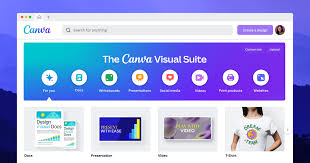
Canva is a browser-based (and mobile) graphic design platform built around drag-and-drop simplicity. Instead of starting from a blank canvas like traditional design software, Canva provides thousands of pre-made templates for nearly every type of visual content imaginable — social media graphics, presentations, resumes, flyers, video content, and more.
The platform’s core appeal is accessibility. You don’t need any design training to produce something that looks professional; you just need to know how to drag, drop, and customize existing templates.
The Free Version: A Strong Starting Point
It’s worth emphasizing just how capable Canva’s free tier already is. Free users get access to:
- Thousands of templates across dozens of categories
- Basic photo editing tools
- A large library of free stock photos, icons, and illustrations
- Collaboration features for working with others on the same design
- Export options in common formats like PNG, JPG, and PDF
For casual users — someone making the occasional social media graphic or a simple flyer — the free version alone might be more than enough.
What Canva Pro Adds
This is where things get interesting. Canva Pro is a paid subscription that unlocks a substantial set of additional features.
Expanded Content Library
Pro users gain access to millions of additional premium photos, videos, audio tracks, graphics, and fonts that aren’t available on the free plan. If you frequently need high-quality stock content, this alone can save significant money compared to purchasing stock assets individually from other platforms.
Background Remover
One of the most popular Pro features is the one-click background remover, which automatically strips the background from any photo. This is genuinely useful for product photography, profile pictures, and marketing materials, and it works impressively well for a fully automated tool — though it’s not always perfect with complex images involving fine details like hair or fur.
Brand Kit
For businesses, the Brand Kit feature lets you save your brand colors, fonts, and logos so they’re easily accessible across every design you create. This ensures visual consistency across all your marketing materials without having to manually re-upload assets every time. Higher Pro tiers even allow multiple brand kits, useful for agencies managing several clients.
Magic Resize (Now Part of Magic Studio)
This feature lets you instantly resize a design to fit different formats — turning an Instagram post into a Facebook cover photo or a Pinterest pin with a single click, rather than manually rebuilding the design at different dimensions. For anyone managing content across multiple social platforms, this is a significant time-saver.
AI-Powered Tools (Magic Studio)
Canva has heavily invested in AI features under its “Magic Studio” branding, including text-to-image generation, Magic Write (AI text generation), Magic Edit (AI-powered object editing within photos), and Magic Expand (extending the borders of an image using AI generation). These tools have improved significantly and can genuinely speed up the design process, particularly for users who don’t have access to separate AI image generation tools.
Content Planner
Pro users get access to a built-in content planner and scheduler, allowing you to schedule and publish designs directly to social media platforms like Instagram, Facebook, and X, without needing a separate social media management tool.
Premium Templates
While the free version has thousands of templates, Pro unlocks a substantially larger library, including templates specifically designed by professional designers for more polished, premium-looking results.
Folders and Storage
Free accounts come with limited cloud storage, while Pro significantly increases storage capacity and adds the ability to organize designs into folders — a small but meaningful quality-of-life improvement for users managing large volumes of design work.
Real-World Performance
Canva’s editor is genuinely fast and responsive, even when working with complex, multi-page designs. The drag-and-drop interface is intuitive enough that most new users can create a polished design within their first few minutes of use, which is a big part of why Canva has become so widely adopted outside of traditional design circles.
Collaboration Features
Canva supports real-time collaborative editing, similar to Google Docs, allowing multiple people to work on the same design simultaneously. Comments and approval workflows make it easy for teams to review and finalize designs together, which is particularly useful for marketing teams that need sign-off from multiple stakeholders before publishing content.
Video Editing
Canva has expanded significantly into video editing, offering a surprisingly capable timeline-based video editor. While it won’t replace dedicated software like Premiere Pro for serious video production, it’s more than sufficient for creating social media clips, simple promotional videos, and basic presentations with motion graphics.
Pricing Breakdown
Canva offers several pricing tiers:
- Free Plan: Suitable for casual users and those just getting started with design.
- Canva Pro: Aimed at individuals and small businesses needing the expanded content library, brand kit, background remover, and AI tools.
- Canva for Teams: Adds collaboration-focused features for larger groups, including centralized billing and team brand controls.
- Canva Enterprise: Custom pricing for large organizations needing advanced admin controls, security, and brand governance across many users.
Canva Pro is generally billed annually or monthly, with the annual plan offering meaningful savings over paying month-to-month. Given how much stock content, AI generation, and premium features are bundled in, many users find that Pro pays for itself if they’re creating design content regularly — particularly if it replaces the need for separate stock photo subscriptions.
Who Actually Needs Canva Pro?
This is really the central question, and the answer depends heavily on how you use Canva.
You probably don’t need Pro if:
- You design graphics only occasionally (a few times a month at most)
- You’re comfortable using the existing free template and asset library
- You don’t need brand consistency tools because you’re a solo user without a formal brand identity
- Basic export formats meet all your needs
You probably do need Pro if:
- You’re managing a business’s visual branding and need consistent colors, fonts, and logos across all materials
- You regularly need stock photos, videos, or premium templates
- You want to use the background remover or AI-powered editing tools regularly
- You’re scheduling and publishing content directly to social media
- You’re working with a team and need collaborative brand management tools
For freelancers, small business owners, marketers, and content creators who produce visual content on a regular basis, the time savings alone from features like Magic Resize, the background remover, and the expanded template library tend to justify the cost fairly quickly.
Strengths
Extremely accessible. No design experience is required to produce professional-looking results.
Constantly evolving AI features. Canva has moved quickly to integrate practical AI tools that genuinely save time, rather than feeling like gimmicks.
Strong free tier. Unlike some “freemium” tools that cripple the free version to force upgrades, Canva’s free plan remains genuinely useful on its own.
Broad use case coverage. From social media graphics to presentations, resumes, videos, and even basic websites, Canva covers an unusually wide range of content types in one platform.
Weaknesses
Limited creative control compared to professional software. Serious designers who need precise control over typography, vector editing, or advanced layering will likely find Canva limiting compared to tools like Adobe Illustrator or Figma.
Template dependence can lead to generic-looking designs. Because so many businesses use the same popular templates, there’s a real risk of your content looking similar to countless other brands using the same starting point.
AI tools, while impressive, aren’t always perfectly accurate. Background removal and AI editing occasionally produce imperfect results that require manual touch-ups.
Subscription costs can add up for teams. While reasonable for individuals, per-seat pricing for larger teams can become a high recurring cost.
Final Verdict: Is Canva Pro Worth It?
For casual or infrequent users, Canva’s free version remains an excellent tool on its own, and upgrading likely isn’t necessary. But for freelancers, small business owners, marketers, and anyone regularly producing visual content, Canva Pro’s combination of expanded assets, brand management tools, AI features, and time-saving functionality like Magic Resize and background removal makes it a genuinely worthwhile investment.
The real value proposition isn’t just the extra features individually — it’s the cumulative time saved across dozens or hundreds of design tasks. If Canva is a regular part of your workflow, Pro tends to pay for itself through efficiency gains alone, even before considering the quality improvements from premium templates and stock content.
Rating: 4.5 out of 5 — An accessible, constantly improving design platform where the free version is already strong, and the Pro upgrade earns its cost for anyone designing regularly.