ClickUp’s marketing tagline for years has been some version of “one app to replace them all,” an ambitious promise that positions it as a substitute for your task manager, your docs tool, your chat app, your goal tracker, and more, all in a single platform. It’s a bold claim, and one that deserves real scrutiny. After spending significant time testing ClickUp across different workflows, this review breaks down where that promise holds up and where it starts to strain under its own ambition.
What Is ClickUp?
Launched in 2017, ClickUp has grown rapidly by pursuing an aggressive feature-expansion strategy — where most competitors specialize, ClickUp tries to absorb. Tasks, docs, chat, whiteboards, goals, dashboards, time tracking, and even email management have all been folded into the platform over time. The result is a tool that, on paper, can replace half a dozen separate subscriptions.
This approach has made ClickUp genuinely popular, particularly among startups and small-to-mid-size teams looking to consolidate their software stack and reduce costs. But it’s also made the platform notoriously dense, with a learning curve that even ClickUp’s own community readily acknowledges.
Core Features Worth Knowing
Hierarchical Structure: ClickUp organizes work into a hierarchy: Workspace → Spaces → Folders → Lists → Tasks → Subtasks. This structure is more granular than most competitors, which allows for very precise organization, but also means new users often need real time to understand where things belong.
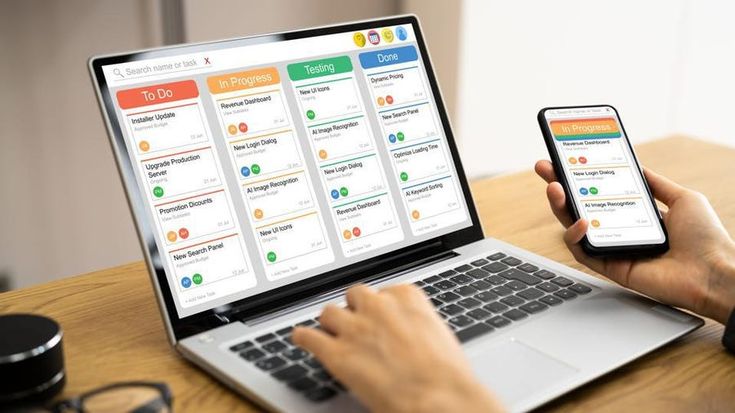
Multiple Views: ClickUp supports an extensive range of views — List, Board, Calendar, Gantt, Table, Timeline, Workload, Box (a resource-allocation view), Mind Map, and Activity views — all built on the same underlying data. Few competitors offer this breadth of native view options without relying on Power-Ups or add-ons.
Custom Fields and Statuses Nearly everything in ClickUp is customizable: custom statuses per list, custom fields for tracking specific data points, and custom task types. This granularity is powerful but also a major contributor to the tool’s complexity.
Docs ClickUp Docs is a built-in document editor comparable to a lightweight Notion or Google Docs, allowing teams to create wikis, meeting notes, or process documentation directly linked to tasks, reducing the need for a separate documentation tool.
Whiteboards: A collaborative visual canvas for brainstorming, useful for teams that want to sketch out workflows or ideas before converting them directly into trackable tasks.
ClickUp Chat: A built-in messaging feature intended to reduce reliance on Slack or Teams for task-related conversations, keeping communication tied directly to the relevant work items.
Automations ClickUp includes a substantial automation library with pre-built recipes and custom trigger-action logic, similar in spirit to Monday.com’s automation builder but with an even larger number of available triggers and actions.
Goals: A dedicated feature for tracking measurable targets (numeric, monetary, task-based, or true/false) tied back to the tasks and projects that contribute to them.
ClickUp AI: An integrated AI assistant that can summarize tasks, draft updates, generate subtasks from a prompt, and help write documentation, available as an add-on or bundled depending on the plan.
What ClickUp Does Genuinely Well
Feature Breadth: There’s no understating this: ClickUp offers more native functionality than almost any competitor in this category. For teams willing to invest the setup time, it genuinely can replace a task manager, a lightweight docs tool, a whiteboard app, and a basic time tracker.
Customization Depth: The level of granular control over statuses, fields, views, and automations is unmatched by most competitors. Teams with specific, unusual workflows that don’t fit neatly into other tools’ templates often find they can eventually configure exactly what they need in ClickUp.
Value for the Price: Compared to assembling a similar feature set from Asana, Monday.com, a separate docs tool, and a separate time-tracking app, ClickUp’s pricing is genuinely competitive, particularly for budget-conscious startups trying to consolidate spend.
Frequent Updates: ClickUp ships new features at a notably fast pace. This is a double-edged sword (discussed below), but it does mean the platform rarely feels stagnant, and user feedback tends to get incorporated relatively quickly.
Native Time Tracking: Unlike Asana or Trello, ClickUp includes built-in time tracking at no additional cost even on lower-tier paid plans, which is a meaningful advantage for agencies, freelancers, or any team billing hourly.
Where ClickUp Struggles
Overwhelming Complexity: This is the most consistent criticism of ClickUp, and it’s well-earned. The sheer number of settings, views, and configuration options can be genuinely paralyzing for new users. Simple tasks like “set up a project” require more decisions than equivalent setup in Trello or even Asana. Teams that don’t dedicate someone to owning the ClickUp configuration often end up with messy, inconsistent implementations.
Performance Issues: Because ClickUp is doing so much under the hood, some users report the interface can feel sluggish, particularly with large workspaces containing thousands of tasks or heavily nested hierarchies. Loading times and occasional bugs have been recurring complaints, especially following major feature releases.
Feature Bloat: The “one app to replace them all” approach means ClickUp’s interface can feel cluttered with features many teams simply never use. Chat, Whiteboards, and Docs are useful additions for some teams, but for others, they’re just visual noise cluttering the navigation sidebar.
Mobile App Limitations: While ClickUp’s mobile apps have improved significantly, they historically lagged behind the desktop experience in both stability and feature parity, which can be frustrating for teams that need to manage work on the go.
Steep Learning Curve for Admins: Setting up ClickUp properly — choosing the right hierarchy, statuses, and automation rules for your specific team — takes real time and expertise. Many teams either hire a consultant or spend weeks in trial-and-error before the system feels genuinely efficient.
Pricing Overview
ClickUp’s plans generally include:
- Free Forever: Surprisingly generous, with unlimited tasks and members, though storage and certain features (like advanced reporting) are capped.
- Unlimited: Removes storage caps, adds unlimited integrations, Gantt charts, and custom fields — a common starting point for small teams.
- Business: Adds advanced automation, Workload view, custom exporting, and more granular permissions, aimed at growing teams needing more control.
- Enterprise: Adds enterprise-grade security, dedicated support, and advanced admin controls for larger organizations.
ClickUp AI is often priced as an add-on regardless of tier, and it’s worth checking current terms since AI feature bundling has shifted over time.
How ClickUp Compares
Compared to Asana, ClickUp offers more native features (docs, whiteboards, time tracking) but with a noticeably steeper learning curve and, at times, rougher performance. Compared to Monday.com, ClickUp is generally more affordable for comparable functionality but less visually polished. Compared to Trello, ClickUp is vastly more powerful but loses the near-instant intuitiveness that makes Trello approachable for non-technical users.
The fundamental trade-off with ClickUp is breadth versus polish. If you want the most features for the price, ClickUp usually wins. If you want the cleanest, fastest, most intuitive experience, other tools often edge it out.
Who Should Use ClickUp
- Startups and small-to-mid teams looking to consolidate multiple tools (task management, docs, time tracking) into a single subscription.
- Teams with unusual or highly specific workflows that don’t fit neatly into other platforms’ more opinionated structures.
- Budget-conscious teams that want maximum feature access without paying for multiple separate subscriptions.
- Teams willing to invest real setup time — ideally with someone designated as the “ClickUp admin” — to configure the system properly before rolling it out broadly.
Who Should Consider Alternatives
- Small teams wanting simplicity should strongly consider Trello or Asana’s core plan instead, where the learning curve is far gentler.
- Teams frustrated by frequent UI changes may find ClickUp’s fast release cadence disruptive rather than exciting.
- Organizations needing rock-solid performance at scale with thousands of tasks might want to closely evaluate ClickUp’s performance with a real trial before committing, given recurring complaints in this area.
Final Verdict
ClickUp largely delivers on its promise of being an all-in-one platform, and for teams willing to push through its learning curve, the consolidation of task management, docs, time tracking, and basic automation into a single tool offers real value, both financially and operationally. The trade-off is complexity: ClickUp is not a tool you can hand to a new team and expect immediate productivity from. It rewards the teams that invest in configuring it properly and punishes those that try to use it casually without a clear structure.
If your team has the patience to set it up right — and ideally a designated owner who understands the platform’s structure — ClickUp can genuinely replace several other subscriptions and become the operational backbone of your organization. If you’re looking for something you can open and start using productively within the hour, you may be better served by a simpler, more focused tool.